

Method 1: Disable Windows 11’s Context Menu Delay
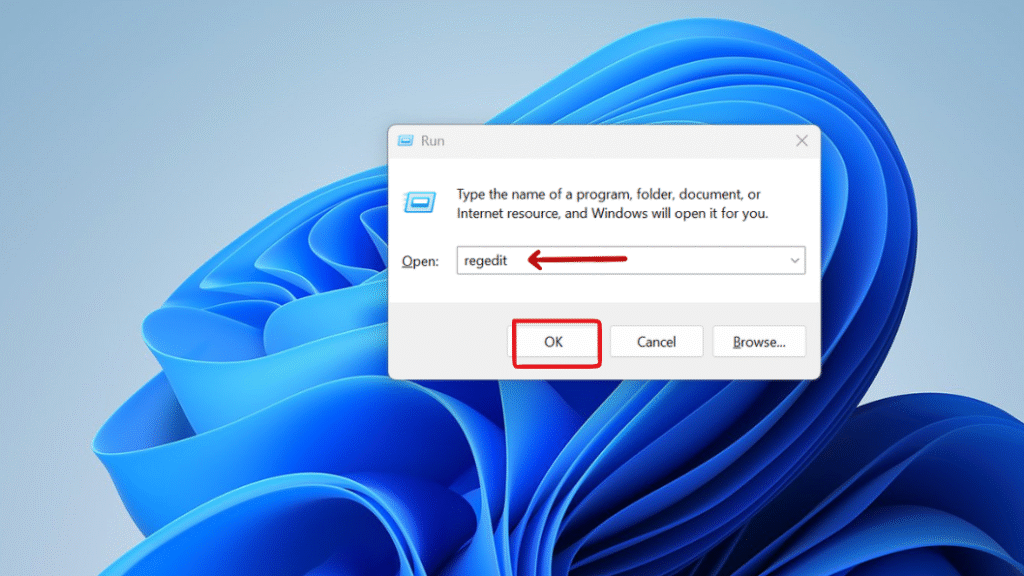
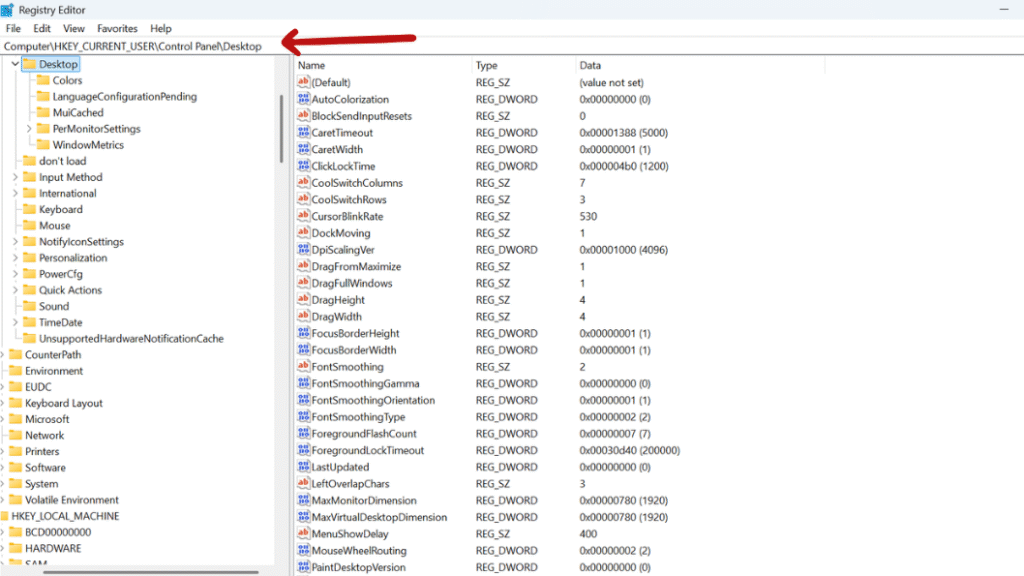
Step 3: In the right pane, find the entry named MenuShowDelay
If it doesn’t exist, right-click in the right pane and select:
New > String Value, then name it MenuShowDelay.
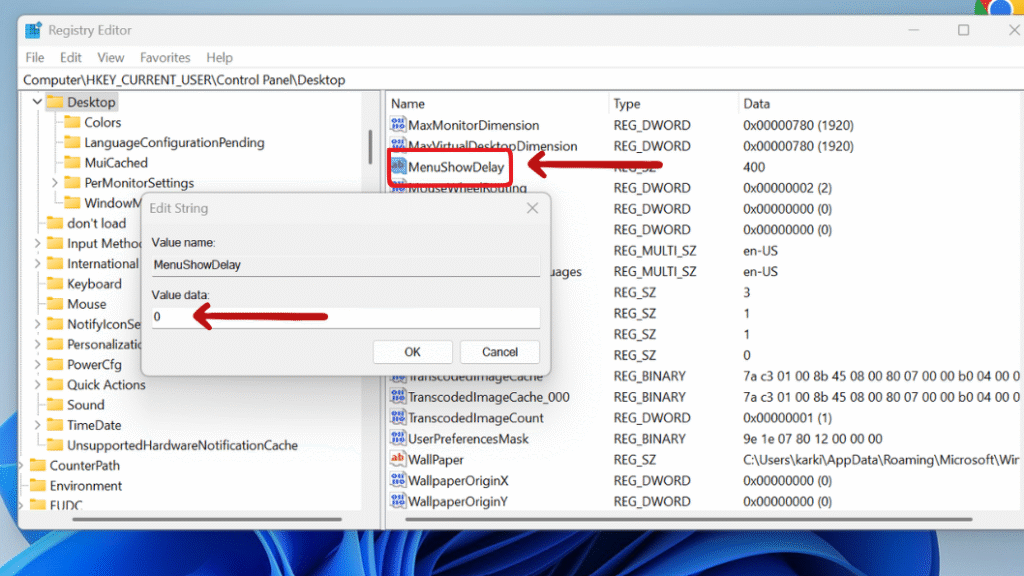
Double-click MenuShowDelay and change the Value data to: 0
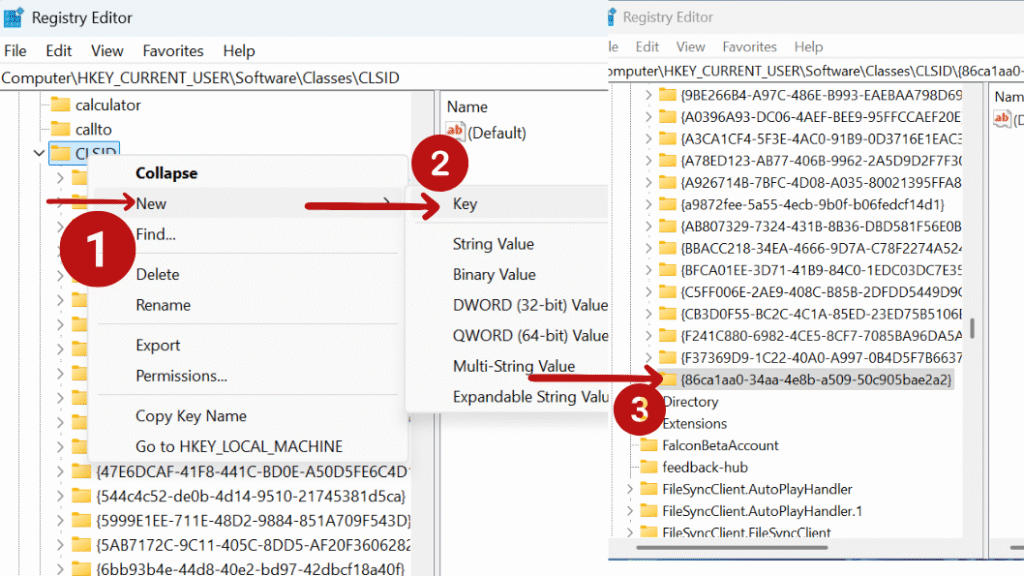
Method 2: Enable the Classic Right-Click Menu in Windows 11
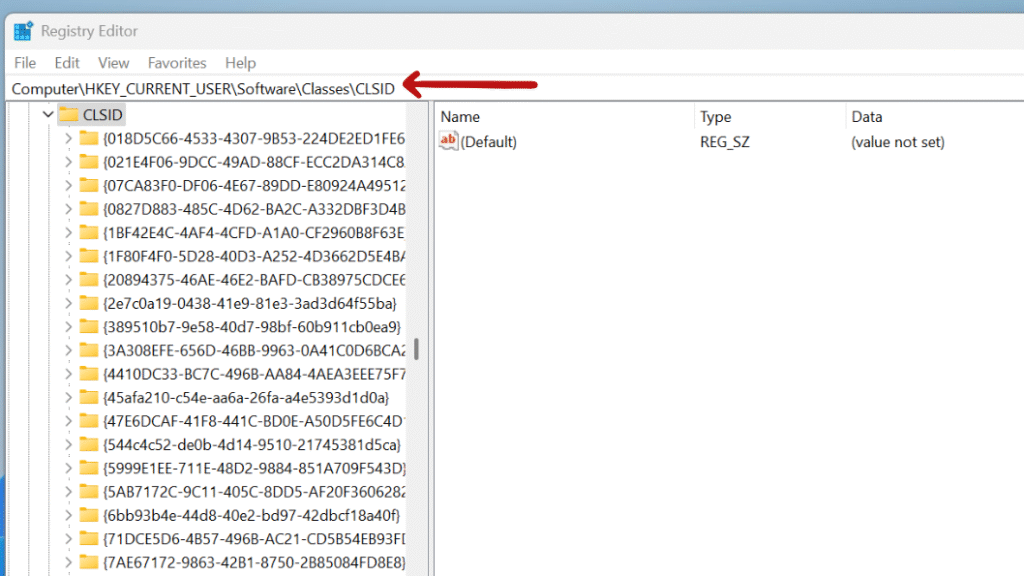
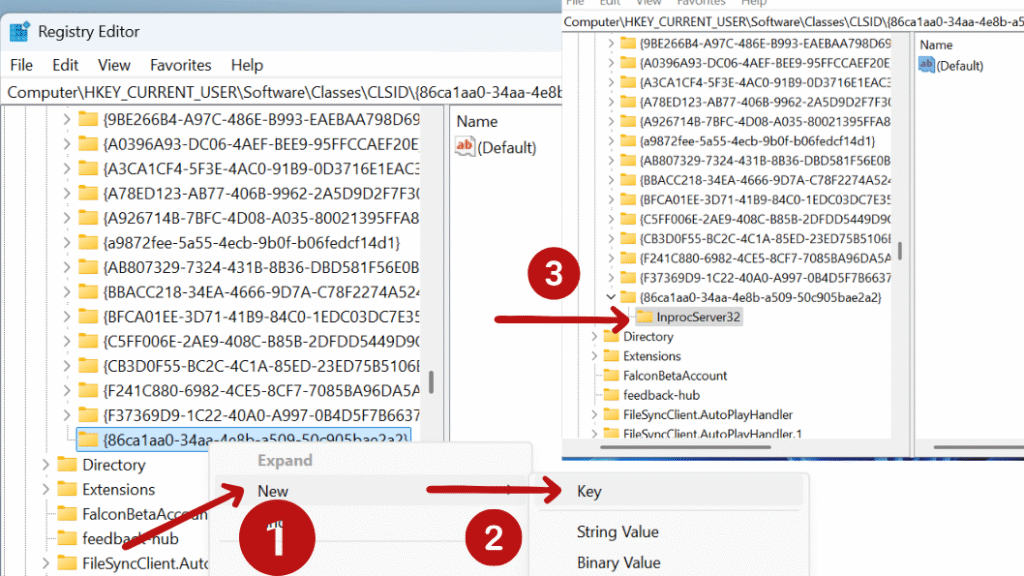
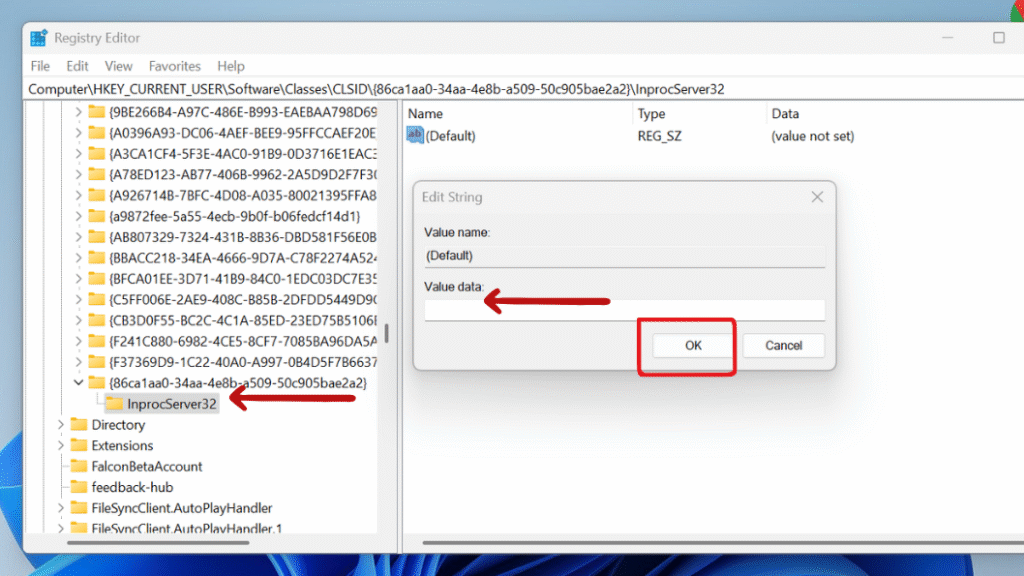
Step 3: Right-click on CLSID, choose New > Key, and name it:
{86ca1aa0-34aa-4e8b-a509-50c905bae2a2}
Method 3: Unlock Hidden File Explorer Features
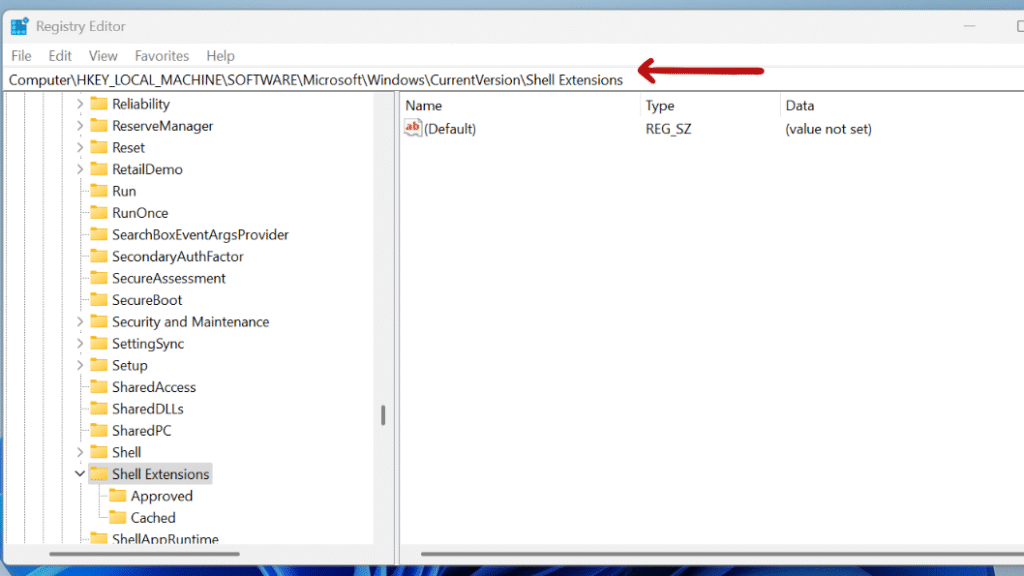
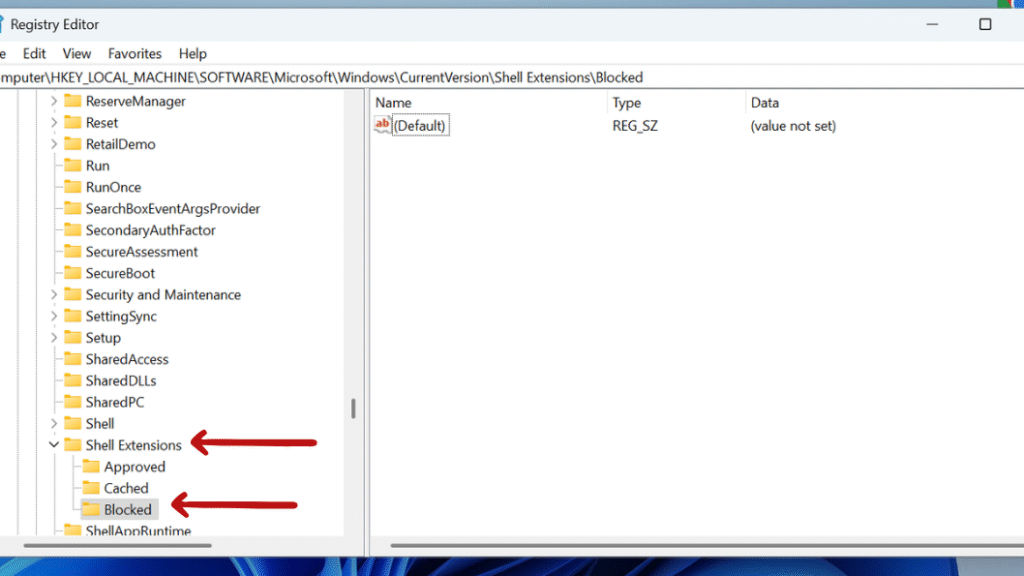
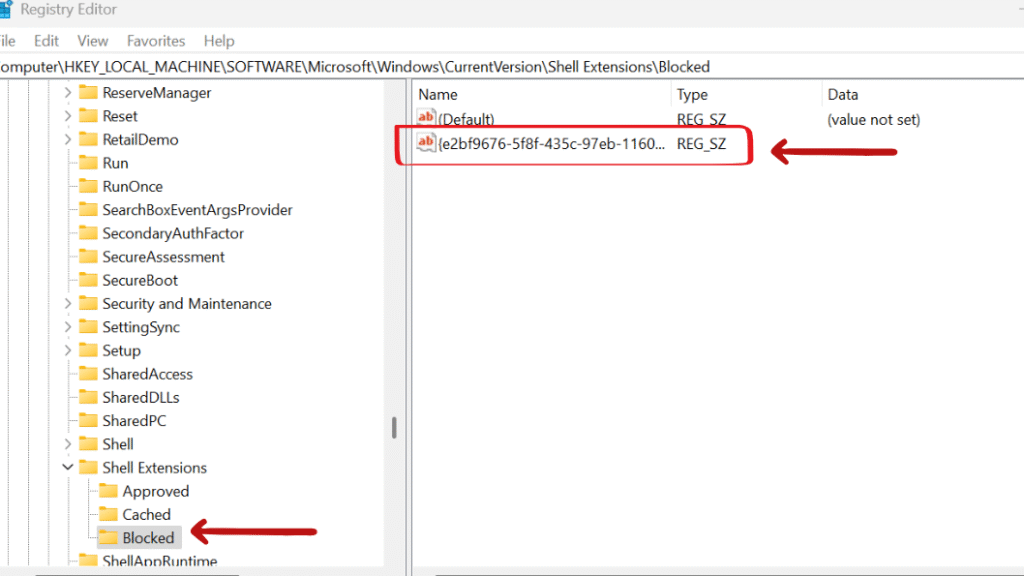
Step 4: Select Blocked, right-click in the right pane, choose New > String Value, and name it:
{e2bf9676-5f8f-435c-97eb-11607a5bedf7}
Method 4: Disable Bing Search in the Start Menu
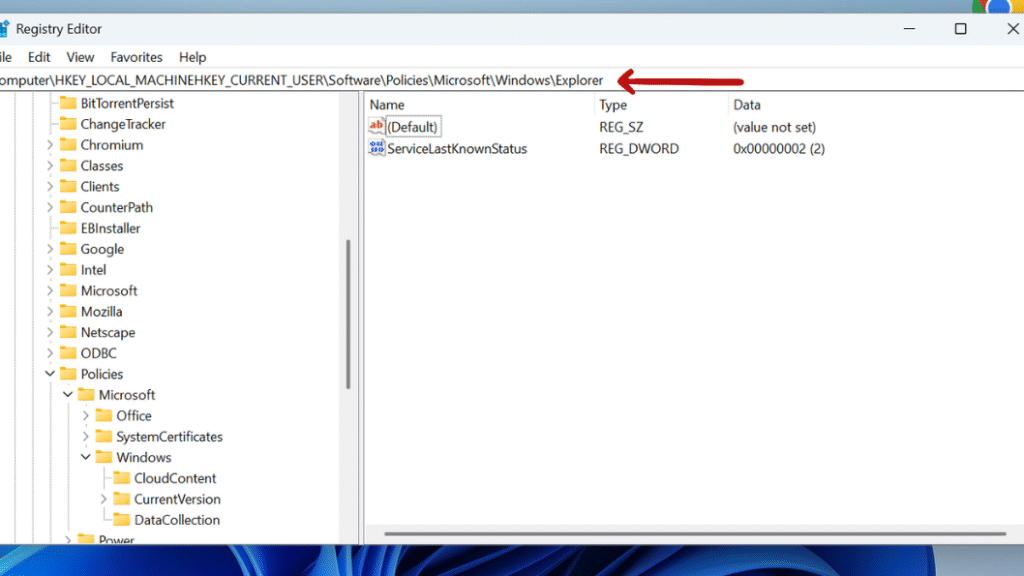
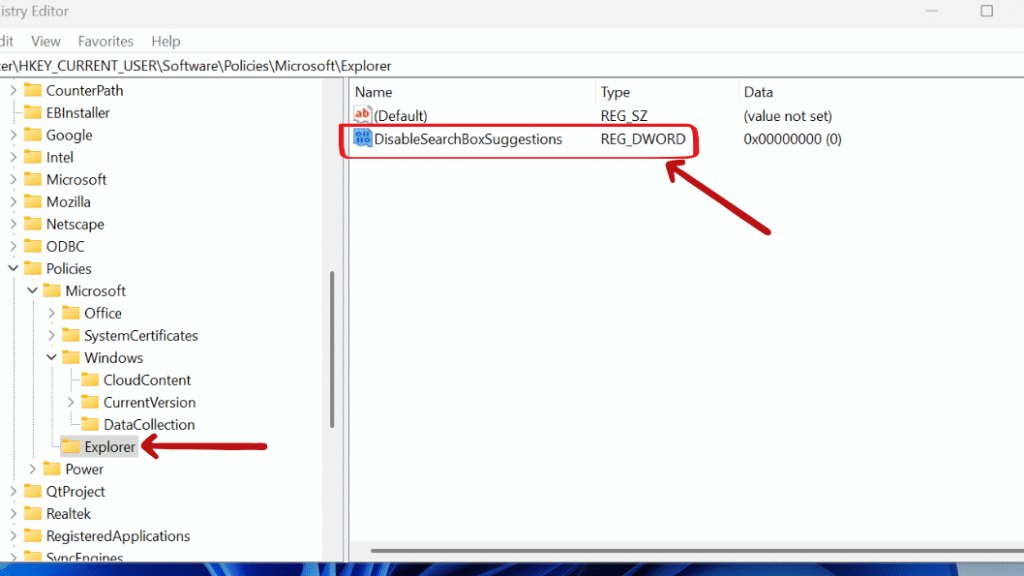
Step 2: Navigate to this registry key:
HKEY_CURRENT_USER\Software\Policies\Microsoft\Windows\Explorer
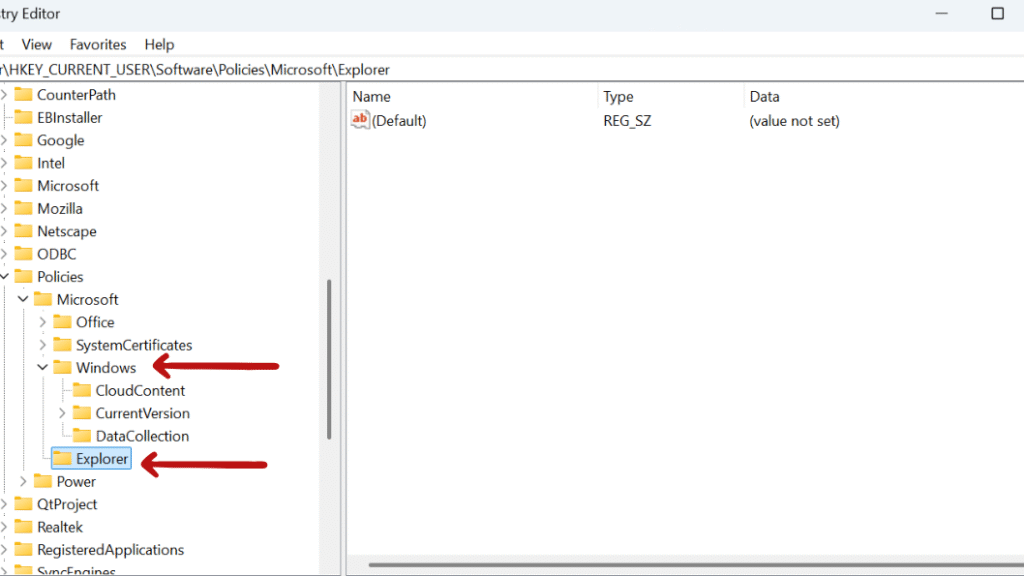
Step 4: In the Explorer key, right-click the right pane and choose:
New > DWORD (32-bit) Value
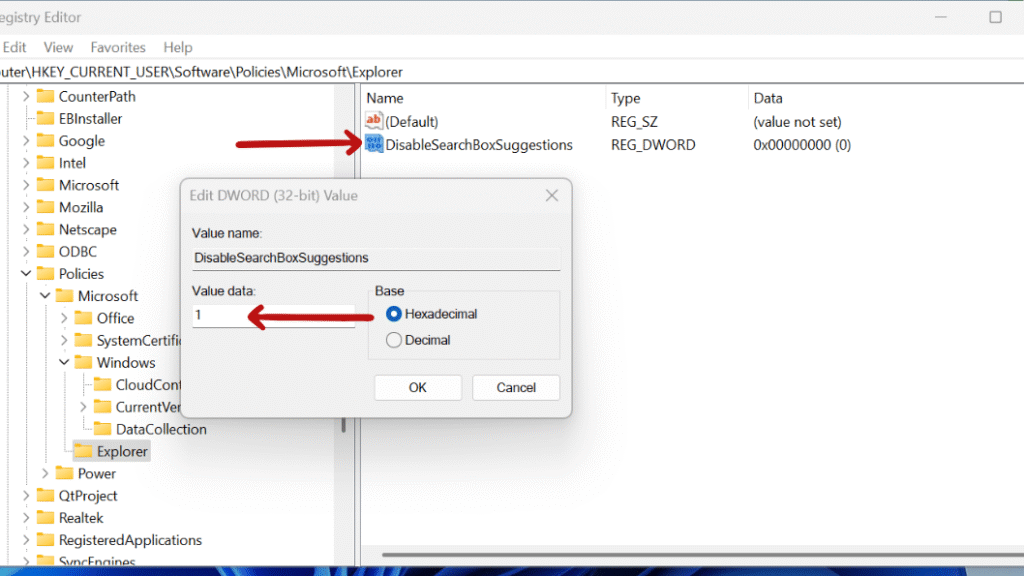
Name it: DisableSearchBoxSuggestions
Method 5: Disable Windows 11’s Ads & Suggested Content
Step 2: Navigate to this registry key:
HKEY_CURRENT_USER\Software\Microsoft\Windows\CurrentVersion\ContentDeliveryManager
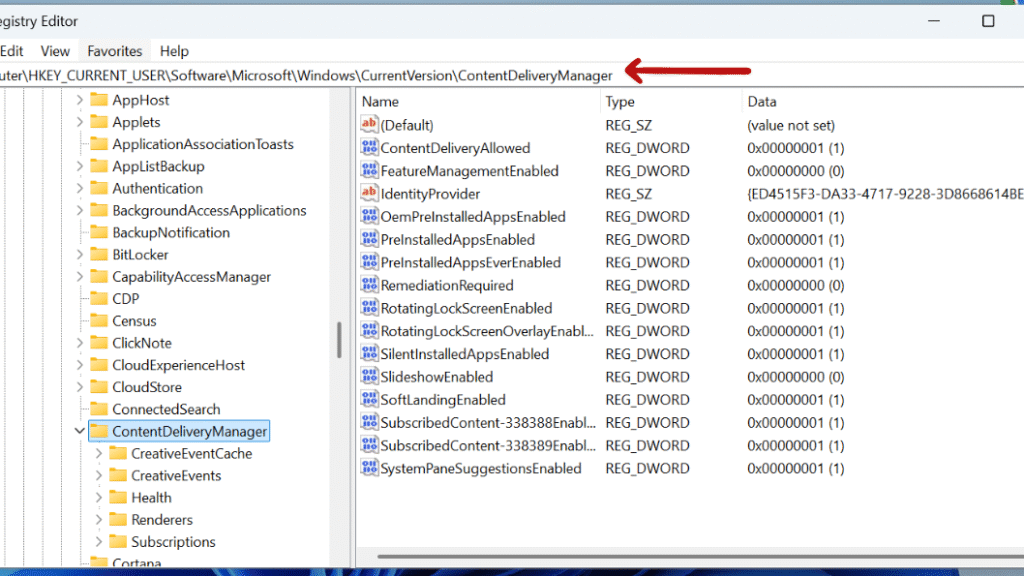
Step 3: • In the right pane, look for these DWORD values and set each one to 0:
o SubscribedContent-338389Enabled
o SubscribedContent-338388Enabled
o SubscribedContent-338387Enabled
o SubscribedContent-310093Enabled
o SubscribedContent-314563Enabled
Method 6: Enable the Classic Volume Mixer
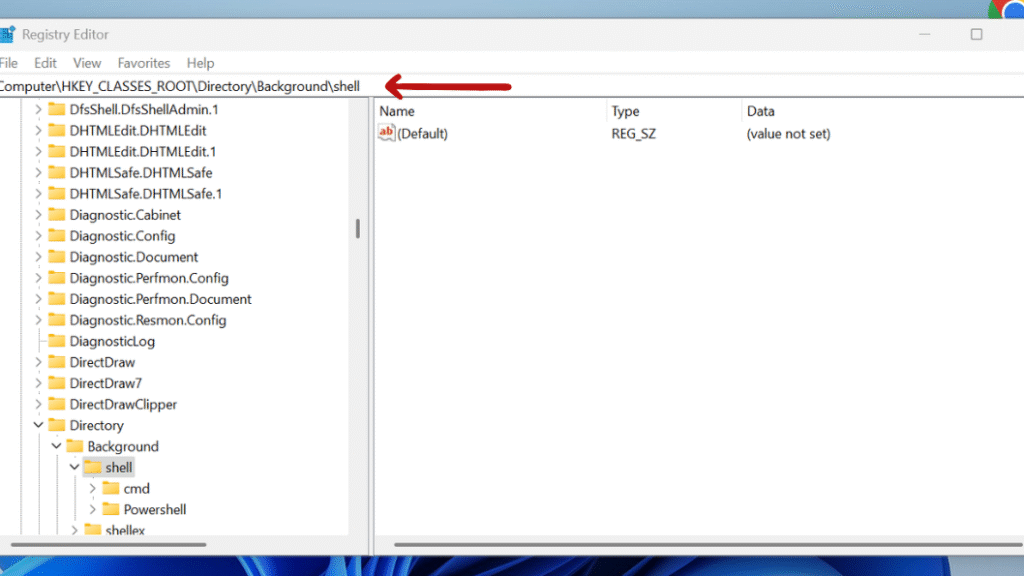
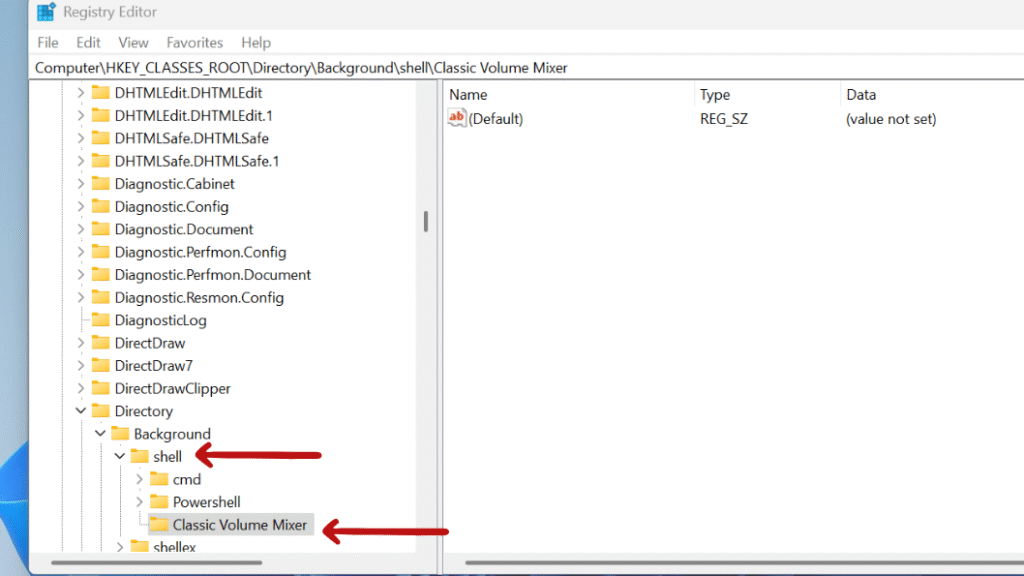
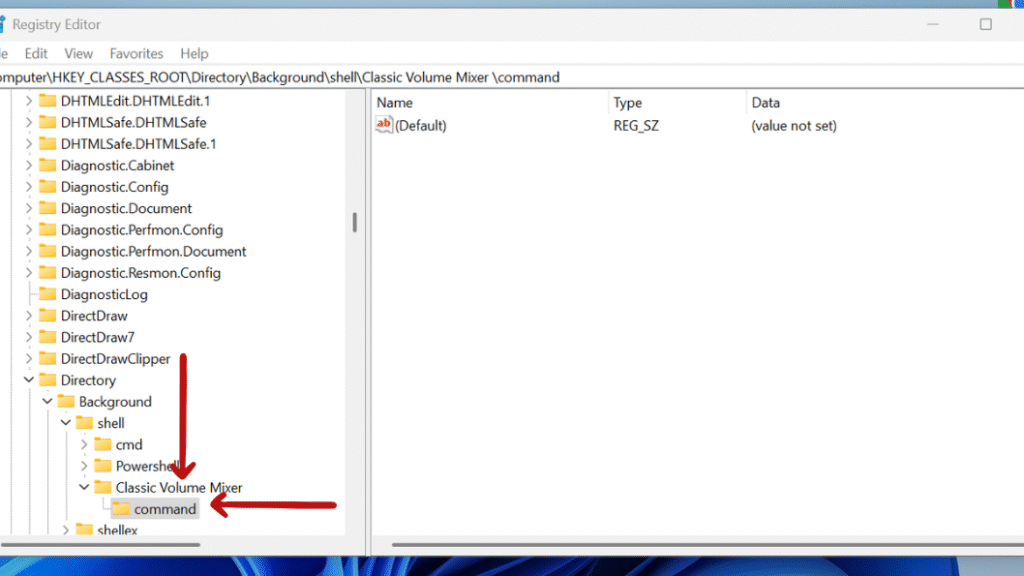
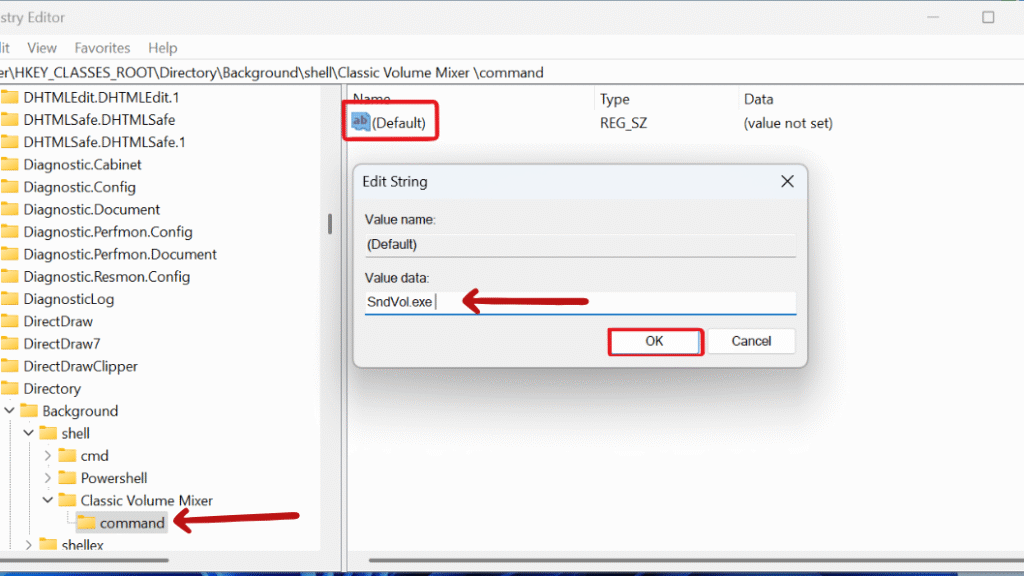
Now, when you right-click on the desktop background, you’ll see an option to open the Classic Volume Mixer.
This small modification in the registry brings fast access to the old style per-app volume controls, which are more straightforward for quick audio adjustments. It is basically useful for video streamers, gamers, or multitaskers who manage multiple audio sources.
Final Thought: 6 Registry Tweaks Every Tech-Savvy Windows 11 User Should Apply Today
Windows 11 has replaced the classic volume mixer with a modern sound interface in the new Settings panel. While visually cleaner, it’s slower to access and lacks the quick control of the old mixer. This modification in registry restores the classic Windows 7/10 volume mixer, which allow you to adjust per-app volume instantly with fewer clicks.
Still confused or stuck about 6 Registry Tweaks Every Tech-Savvy Windows 11 User Should Apply Today ? Leave your questions in the comments or call me at +1– 844-405-0212. I am here to help!
Stay updated with more at www.365dayson.com !